We had 300 subscribers, three Edge servers, one Origin server, a whole galaxy of multicolored browsers and a stream with a 480р resolution. Also, a task to develop a system for webinar hosting. And we needed to do all that, because once you get locked into streaming via WebRTC with low latency, the tendency is to push it as far as you can. The only question remaining concerned the selection of the cloud platform for server hosting. For there is no one more dejected, upset and angry than viewers watching a steam riddled with artifacts and freezes.
In our blog, we have mentioned the practical application of CDN many times already. This includes broadcasts of auctions, horse races and sports events. As well as broadcasts of webinars, master classes and online lessons.
Indeed, the need for low-latency WebRTC video broadcasts is already well established in our lives. We propose to consider another option for deploying CDN with Elastic Load Balancing and auto scaling in the Amazon Web Services (AWS) environment.

Support for Amazon EC2 cloud service
in Web Call Server
Amazon AWS is a reliable virtual server service used by thousands of organizations all over the world. Developers praise Amazon Web Services for easy scalability, reliable functioning and for ability to deploy a virtual server of any given performance and on any continent in just a few clicks.
The API of the Amazon AWS service supports automatic deployment of servers. In just a few seconds hundreds of server instances can be deployed and stopped when the task is solved. This allows applications with serious loads dynamically adapt for peak loads and pay only for those resources and hours that were actually in use.
Web Call Server is specifically adjusted to run in Amazon EC2 environment in several clicks.
WCS5 on Amazon EC2
Running Web Call Server
on Amazon AWS Marketplace
1. Open Web Call Server page on Amazon AWS Marketplace and click “Continue”. for further actions you will need an active account on Amazon AWS.
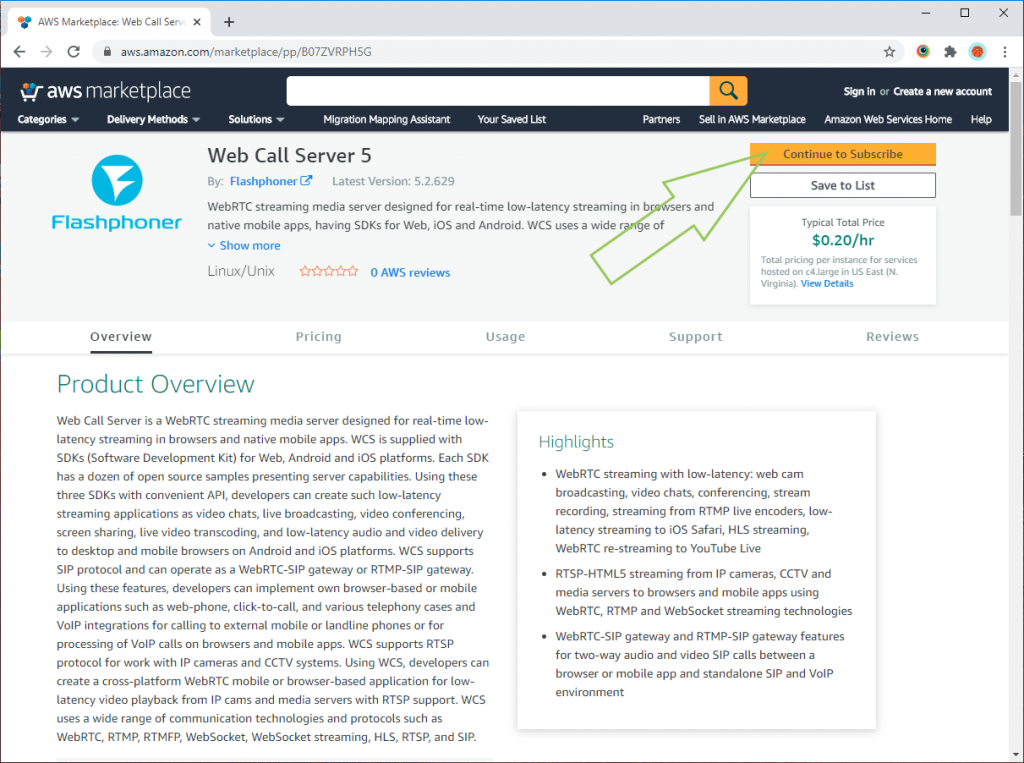
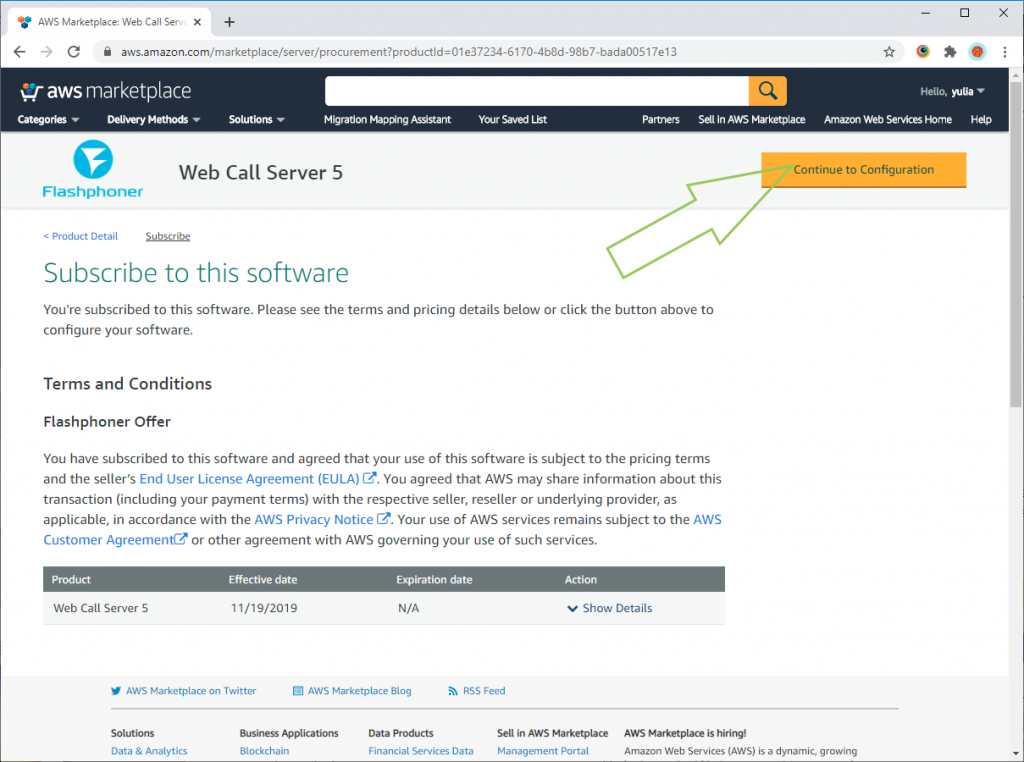
2. After authorization, a page opens with the license agreement and billing terms. We look through and click the “Continue to Configuration”.
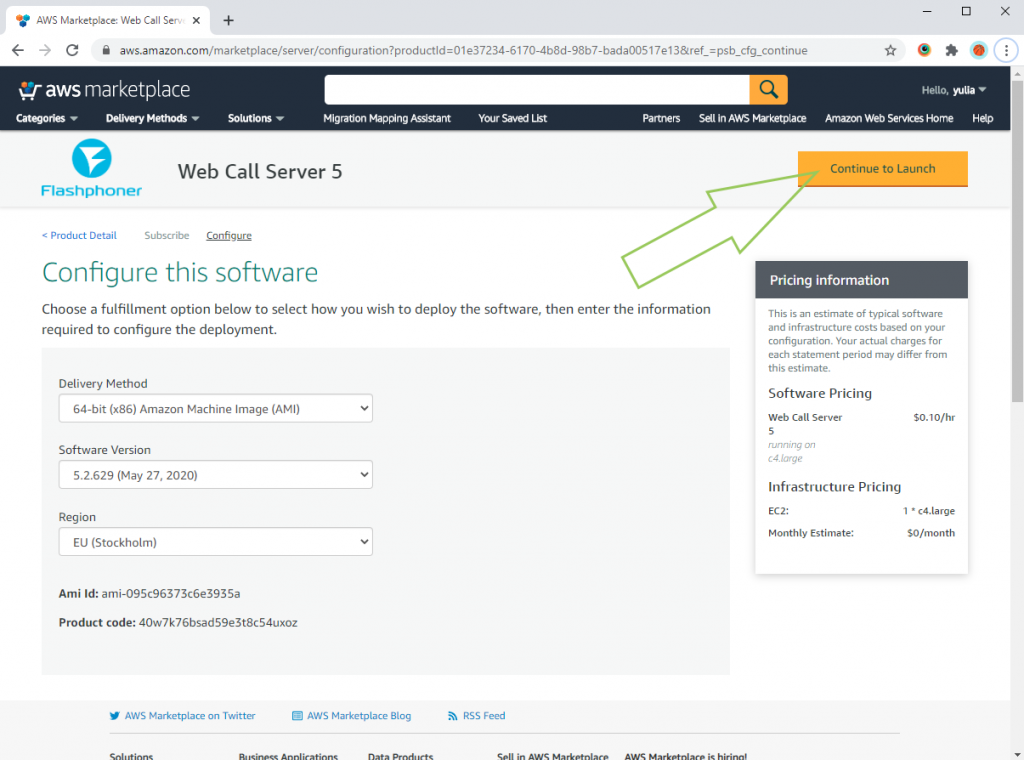
3. On the next page, you can choose the method of software deployment and specify the desired version and region, as well as get acquainted with the cost of subscribing to software and the cost of renting a server. To go further, click “Continue to Launch”.
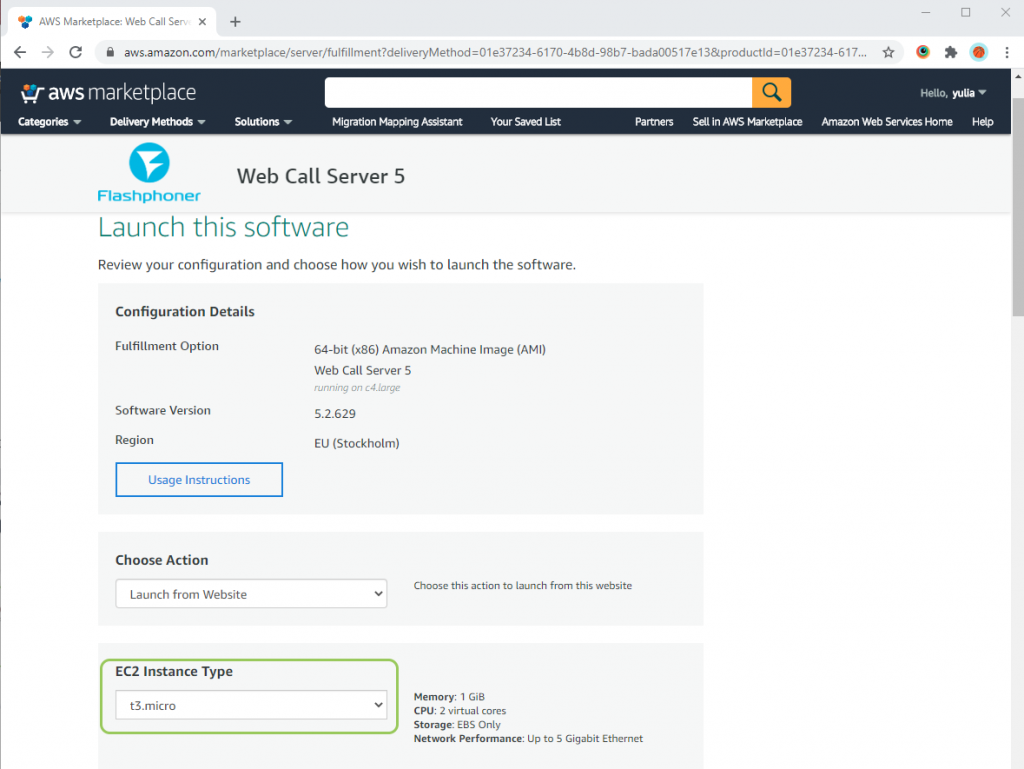
4. On the page to start the server, select the type of virtual machine.
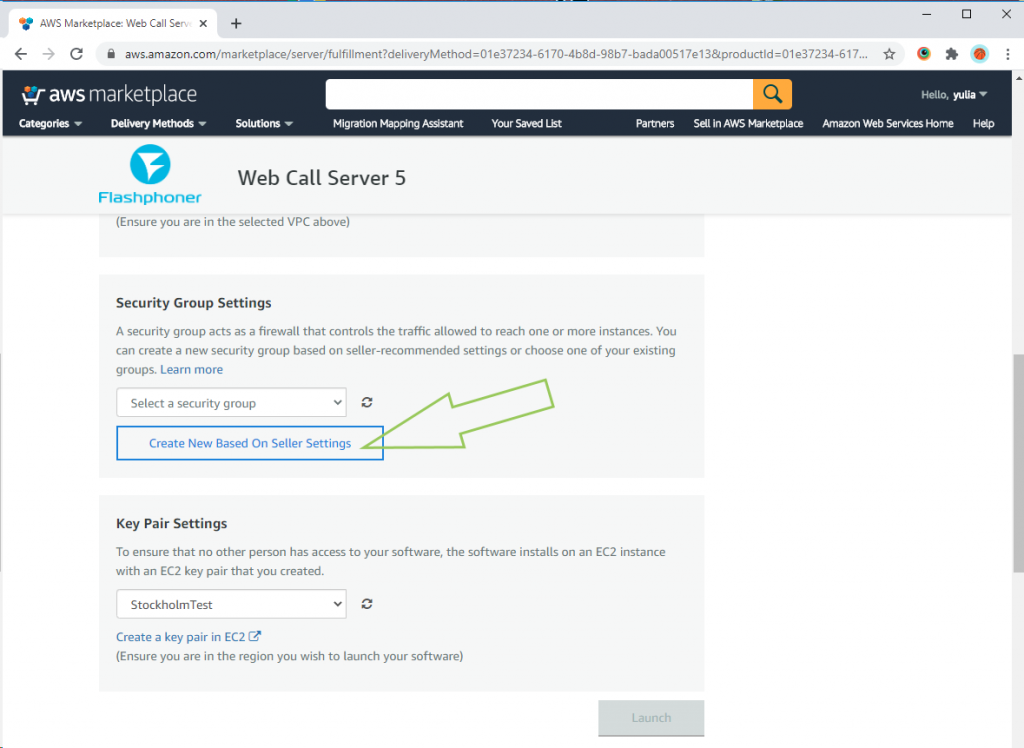
At the bottom of the page, find the “Security Group Settings” section and click the “Create new based on seller settings” button.
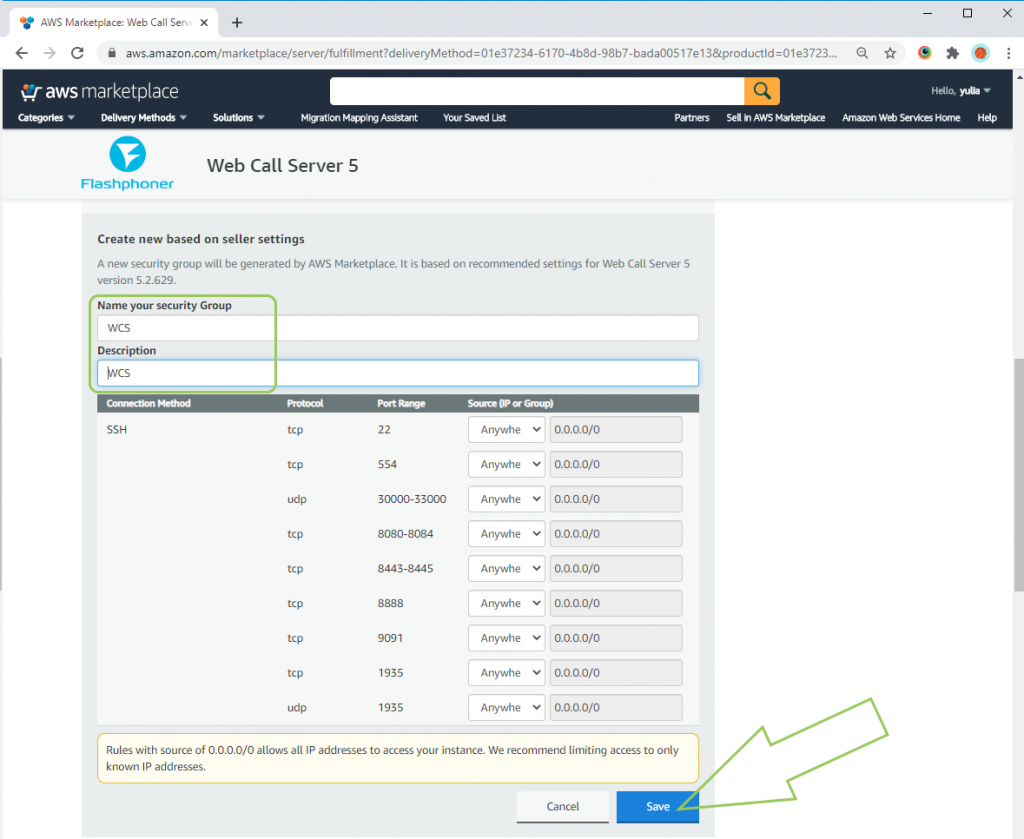
Fill in the fields “Name your security Group” and “Description” in the form that opens, and click the “Save” button.
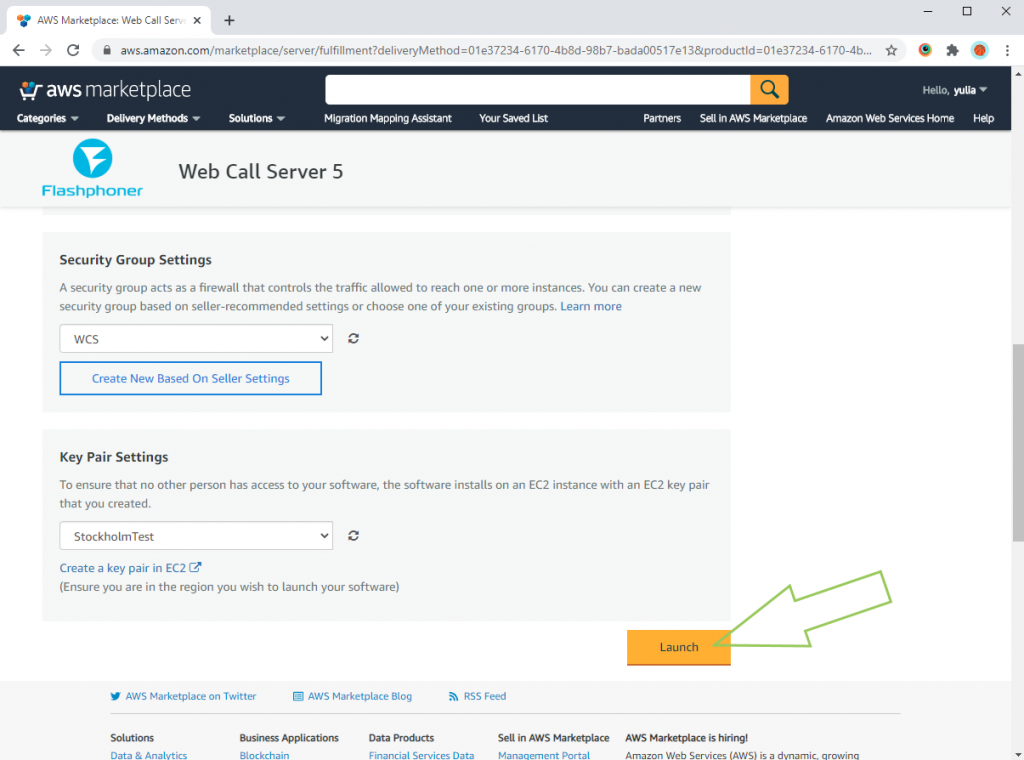
Now click the “Launch” at the bottom of the page:
5. Starting the server may take about a minute. The hourly WCS license for your new instance will be activated automatically.
Testing
Now let’s move on to testing WCS running in Amazon EC2.
For testing, you need to open the browser page https://host:8444, where “host” is the IP address or domain name of your AWS server.
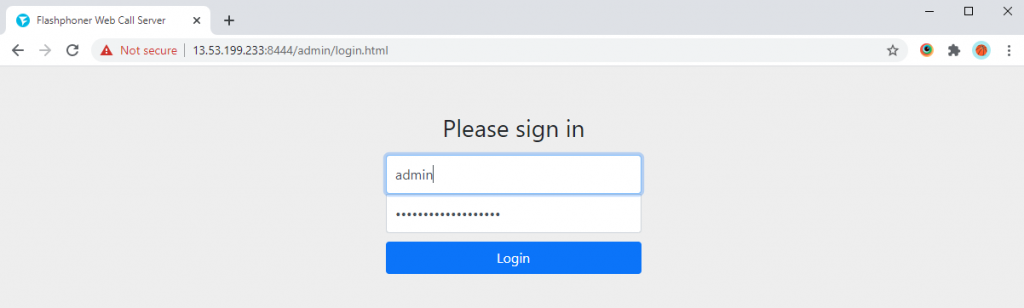
1. Log in to the WCS web interface (login: admin, password: Instance ID of the running virtual machine):
2. If necessary, import valid SSL certificates in the “Security => Certificates” section and return to the “Demo” section:
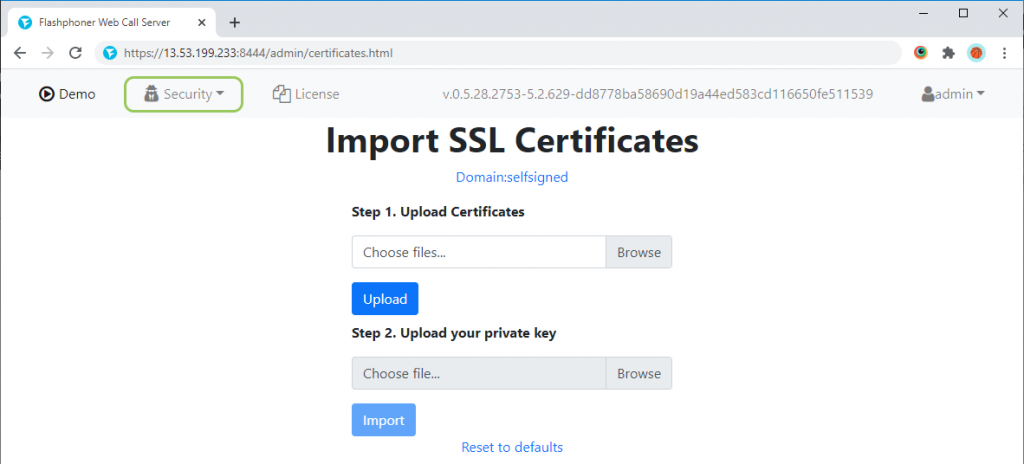
3. Select the “Two-way Streaming” item in the menu on the left side of the page that opens:

4. On the opened page of the Two-way Streaming example, click the Connect button (1) and allow the browser access to the microphone and camera of your computer (2):
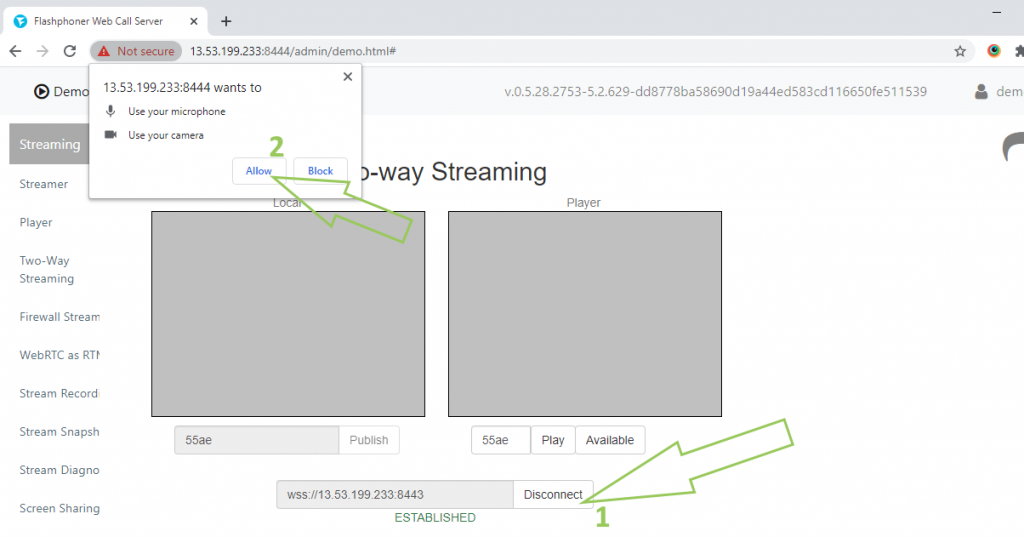
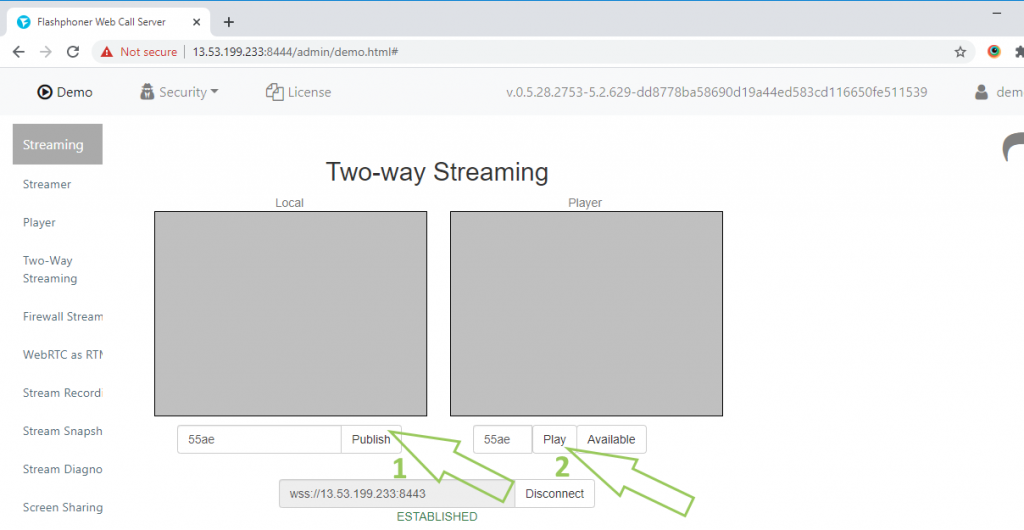
5. Then press the “Publish” button (1) and after waiting for a message about the publication of the stream, click the “Play” button (2):
6. In the screenshot below, a working example of “Two-way Streaming” with the publication and playback of the stream:
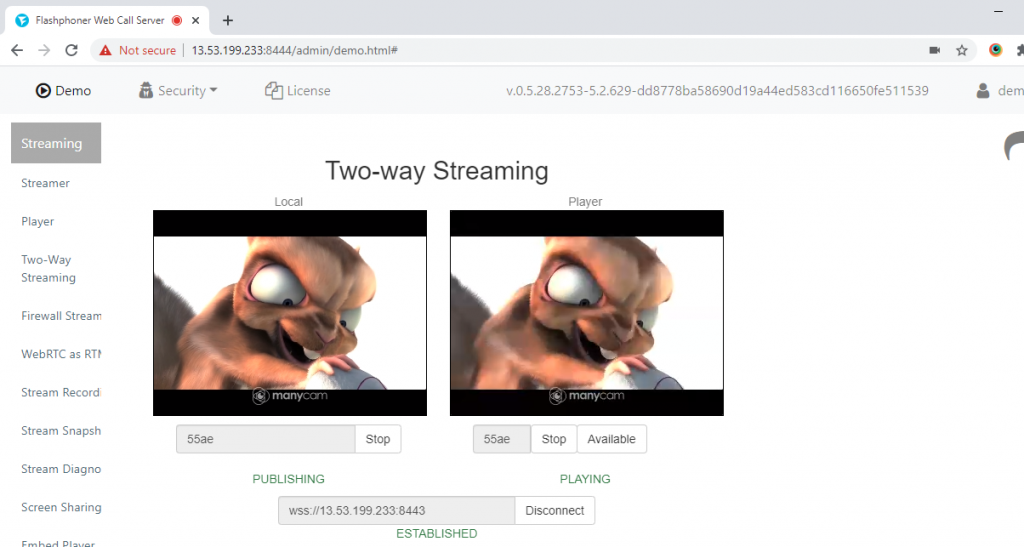
Therefore, we were able to run Web Call Server in the Amazon EC2 environment and received a working streaming video server instance providing support for RTMP, RTMFP, WebRTC, SIP, RTSP, Websocket technologies.
Further work with Web Call Server
For further testing and integration you should have a look at the following basic cases of server operation:
Web telephone for calls through the SIP gateway
The сlick-to-сall button for online calls from the website
RTSP-HTML5 player to broadcast video from IP cameras
Recording WebRTC video streams from a browse
Online broadcasting from the webcam of a browser
RTMP broadcasting from live encoders
A video chat between browsers and mobile applications
Broadcasting of SIP calls to an RTMP server or CDN
Browser screen sharing and broadcasting using the WebRTC technology
Web JavaScript SDK для Web Call Server
Mobile SDK for WebRTC online broadcasts and video calls from an iOS application
You can find more information about server operation in documentation, in particular in the User Manual, as well as on support forums.
Download Web Call Server 5
System requirements: Linux x86_64, 1 core CPU, 2 Gb RAM, Java
Download Now
Installation:
- wget https://flashphoner.com/download-wcs5.2-server.tar.gz
- Unpack and install using 'install.sh'
- Launch server using command 'service webcallserver start'
- Open the web interface https://host:8444 and activate your license
If you are using Amazon EC2, you don't need to download anything.
Launch WCS5 on Amazon EC2
Web Call Server Monthly Subscription
$145 per month
Purchase
Latest news
-
Sales migration from Skype to Teams on 16 Apr 2025
On April 16, 2025, we began the transition from Skype to Teams.
On the same day, we sent out a message via our Skype account (flashphoner.com / Flashphoner Sales) informing users about the move.
Unfortunately, this message appears to have triggered a block on our Microsoft account (Skype + Teams), most likely due to being flagged as spam. As of now, appeals have not been successful, and the account remains blocked.
Our current contact details:
Microsoft Teams: sales@flashphoner.com — for sales, pre-sales, and licensing inquiries
See also updated contacts page: https://flashphoner.com/contact
21, April 2025
-
Card payments were successfully restored on September 13, 2024
We have restored card payments since September 13, 2024.
Please write to sales@flashphoner.com or Skype flashphoner.com with any questions regarding payments and subscription renewals.
13, September 2024
-
Card payments temporary unavailable since August 16, 2024
Due to technical reasons, we are temporarily unable to accept card payments.
For direct payments via Wire-Transfer or USDT, please contact us at:
sales@flashphoner.com
Sorry for the inconvenience.
We will inform you as soon as payments are operational. Stay tuned for updates on our website.
16, August 2024
More News