a
Let’s imagine a situation: Oleg is a full-stack developer working with Windows and his new task is to develop a client-server application for streaming… For catching the RTSP cameras, to be exact. Of course, he can use a cloud server but then a debug of problems with the channel is added to the debug of possible problems with the client code or server settings, so testing on a local network is more convenient, in particular because it’s free. Or he can use Docker but here are the other problems come up: due to network problems, Docker on Windows is unusable, and the workaround – running Docker in a virtual machine – complicates the work too much.
What should he do in this case? The best option is to use WSL, but exactly how, we will tell you (and show) using the example of a Web Call Server (WCS), which will help to convert RTSP streams to WebRTC.

Embedding republishing of a SIP call to a video stream
To embed the republishing of a SIP call to a stream, you need to insert HTML code and API dependency scripts into your website
Use these instructions for quick installation and configuration of the server. In addition to that, you can connect to our demo server demo.flashphoner.com to perform the tests.
Step-by-step instructions for embedding the republishing of a SIP call to a video stream
SIP calls that pass through the WCS server can be captured and processed as regular video streams. There are two options for capturing a video stream from a SIP call – “SIP as Stream” and “SIP as RTMP”. Consider implementing these options
Option 1. Embedding of the conversion of SIP video calls to WebRTC streams with playback in HTML5 player on a web page
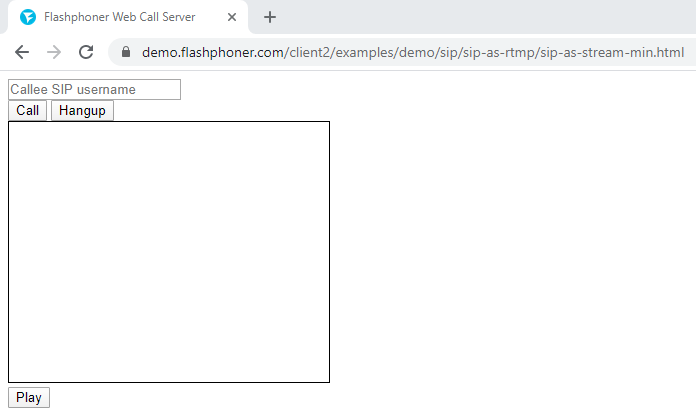
To embed the conversion of a SIP call into a stream (SIP as Stream function) and a player for the stream, we will create two empty files sip-as-stream-min.html and sip-as-stream-min.js. In this case, the minimum REST API client and minimum player will be placed on the web page.
Let’s analyze the contents of files
HTML
Let’s place the necessary elements in sip-as-stream-min.html:
1. Import the main API script
<script type="text/javascript" src="https://flashphoner.com/downloads/builds/flashphoner_client/wcs_api-2.0/current/flashphoner.js"></script>
2. Import the SIP as Stream script
<script type="text/javascript" src="sip-as-stream-min.js"></script>
3. Specify styles for the “display” class. This is necessary for the further correct display of the video in the div element
<style>
	.display {
		width: 100%;
		height: 100%;
		display: inline-block;
	}

	.display > video, object {
		width: 100%;
		height: 100%;
	}
</style>
4. Initialize the API on page load
<body onload="init_page()">
5. Add the field to enter a SIP callee number
<input id="callee" type="text" placeholder="Callee SIP username"/>
6. Add the “Call” button to make an outgoing SIP call
<button id="callBtn">Call</button>
7. Add the button to end the call
<button id="hangupBtn">Hangup</button>
8. Add div element in which the captured SIP stream will be played
<div id="sipVideo" class="display" style="width:320px;height:260px;border: solid 1px"></div>
9. Add the button to start playback of the captured SIP stream
<button id="playBtn">Play</button>
The full HTML code of the page looks like this:
<!DOCTYPE html>
<html lang="en">
<head>
    <meta charset="UTF-8">
	<script type="text/javascript" src="https://flashphoner.com/downloads/builds/flashphoner_client/wcs_api-2.0/current/flashphoner.js"></script>
    <script type="text/javascript" src="sip-as-stream-min.js"></script>
    <style>
		.display {
			width: 100%;
			height: 100%;
			display: inline-block;
		}

		.display > video, object {
			width: 100%;
			height: 100%;
		}
    </style>
</head>
<body onload="init_page()">
	<input id="callee" type="text" placeholder="Callee SIP username"/>
	<br>
    <button id="callBtn">Call</button>
	<button id="hangupBtn">Hangup</button>
	<br>
	<div id="sipVideo" class="display" style="width:320px;height:260px;border: solid 1px"></div>
        <br>
	<button id="playBtn">Play</button>
</body>
</html>
JavaScript
1. Initialize the constants for the WCS server operation status
var SESSION_STATUS = Flashphoner.constants.SESSION_STATUS;
var STREAM_STATUS = Flashphoner.constants.STREAM_STATUS;
2. Initialize the global variables for the Websocket session, the div of the element in which the capturedSIP video stream will be played and the URL for the REST request
var session;
var sipVideo;
var url = "http://demo.flashphoner.com:8081/rest-api/call";
3. In the function “init_page()”, we initialize the API, bind the functions to the events of clicking on the corresponding buttons and define a div element for playing the stream
function init_page() {
    Flashphoner.init({});
    callBtn.onclick = call;
    hangupBtn.onclick = hangup;
    playBtn.onclick = playSipToStream;
    sipVideo = document.getElementById("sipVideo");
}
4. The function “call()” generates REST request and sends it to arrange an outgoing SIP call and capturing of the stream
function call() {
    fetchUrl = url + "/startup";
    const options = {
        method: "POST",
        headers: {
            "Content-Type": "application/json"
        },
        body: JSON.stringify({
            "callId": "123456",
            "callee": document.getElementById("callee").value,
            "toStream": "call_stream1",
            "hasAudio": "true",
            "hasVideo": "true",
            "sipLogin": "10001",
            "sipAuthenticationName": "10001",
            "sipPassword": "Pass123",
            "sipDomain": "your_sip_server.com",
            "sipOutboundProxy": "your_sip_server.com",
            "sipPort": "5060",
            "appKey": "defaultApp",
            "sipRegisterRequired": "true"
        }),
    }
    fetch(fetchUrl, options)
}
5. Function “hangup()” generates a REST call to end the ongoing outbound SIP call
function hangup() {
    fetchUrl = url + "/terminate";
    const options = {
        method: "POST",
        headers: {
            "Content-Type": "application/json"
        },
        body: JSON.stringify({
            "callId": "123456",
        }),
    }
    fetch(fetchUrl, options)
}
6. Function “playSipToStream()” creates Websocket session on the WCS server for playing the captured SIP stream
function playSipToStream() {
    Flashphoner.createSession({
        urlServer: "wss://demo.flashphoner.com:8443"
    }).on(SESSION_STATUS.ESTABLISHED, function(session) {
        playStream(session);
    });
}
7. The function “playStream(session)” plays the captured SIP stream in the div element on the HTML page
function playStream(session) {
    var stream = session.createStream({
        name: "call_stream1",
        display: sipVideo
    }).on(STREAM_STATUS.PLAYING, function(stream) {});
    stream.play();
}
Full JavaScript code looks like this:
var SESSION_STATUS = Flashphoner.constants.SESSION_STATUS;
var STREAM_STATUS = Flashphoner.constants.STREAM_STATUS;
var session;
var sipVideo;
var url = "http://demo.flashphoner.com:8081/rest-api/call";

function init_page() {
    Flashphoner.init({});
    callBtn.onclick = call;
    hangupBtn.onclick = hangup;
    playBtn.onclick = playSipToStream;
    sipVideo = document.getElementById("sipVideo");
}

function call() {
    fetchUrl = url + "/startup";
    const options = {
        method: "POST",
        headers: {
            "Content-Type": "application/json"
        },
        body: JSON.stringify({
            "callId": "123456",
            "callee": document.getElementById("callee").value,
            "toStream": "call_stream1",
            "hasAudio": "true",
            "hasVideo": "true",
            "sipLogin": "10001",
            "sipAuthenticationName": "10001",
            "sipPassword": "Pass123",
            "sipDomain": "your_sip_server.com",
            "sipOutboundProxy": "your_sip_server.com",
            "sipPort": "5060",
            "appKey": "defaultApp",
            "sipRegisterRequired": "true"
        }),
    }
    fetch(fetchUrl, options)
}

function hangup() {
    fetchUrl = url + "/terminate";
    const options = {
        method: "POST",
        headers: {
            "Content-Type": "application/json"
        },
        body: JSON.stringify({
            "callId": "123456",
        }),
    }
    fetch(fetchUrl, options)
}

function playSipToStream() {
    Flashphoner.createSession({
        urlServer: "wss://demo.flashphoner.com:8443"
    }).on(SESSION_STATUS.ESTABLISHED, function(session) {
        playStream(session);
    });
}

function playStream(session) {
    var stream = session.createStream({
        name: "call_stream1",
        display: sipVideo
    }).on(STREAM_STATUS.PLAYING, function(stream) {});
    stream.play();
}
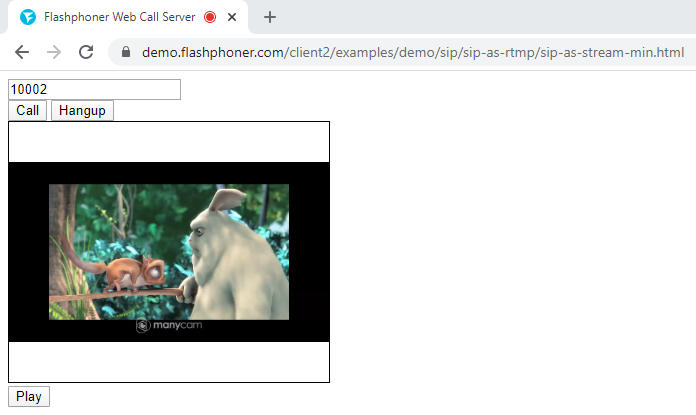
View of the page with the player in which the captured SIP video stream is played
Option 2. Embedding the republishing of SIP video calls to RTMP streams with playback in a third-party RTMP player
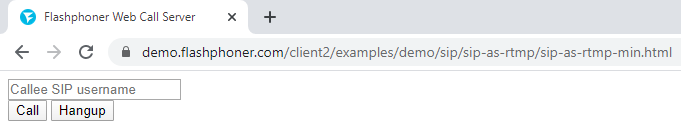
To embed the conversion of a SIP call into a stream, followed by republishing it to an RTMP server (SIP as RTMP function), we create two empty files sip-as-rtmp-min.html and sip-as-rtmp-min.js. In this case, on the web-page will be placed a minimum REST API client and a link for playback in a third-party player will be displayed.
Let’s analyze the contents of the files
HTML
Let’s place the necessary elements in sip-as-rtmp-min.html:
1. Import the main API script
<script type="text/javascript" src="https://flashphoner.com/downloads/builds/flashphoner_client/wcs_api-2.0/current/flashphoner.js"></script>
2. Import the SIP as RTMP script
<script type="text/javascript" src="sip-as-rtmp-min.js"></script>
3. Initialize the API on page load
<body onload="init_page()">
4. Add the field to enter a SIP called number
<input id="callee" type="text" placeholder="Callee SIP username"/>
5. Add the “Call” button to make an outgoing SIP call
<button id="callBtn">Call</button>
6. Add the button to end the call
<button id="hangupBtn">Hangup</button>
7. Add a div element, which will receive a link to play the video in a third-party player
<div id="rtmpurl"></div>
The full HTML code of the page looks like this:
<!DOCTYPE html>
<html lang="en">
<head>
    <meta charset="UTF-8">
	<script type="text/javascript" src="https://flashphoner.com/downloads/builds/flashphoner_client/wcs_api-2.0/current/flashphoner.js"></script>
    <script type="text/javascript" src="sip-as-rtmp-min.js"></script>

</head>
<body onload="init_page()">
	<input id="callee" type="text" placeholder="Callee SIP username"/>
	<br>
    <button id="callBtn">Call</button>
	<button id="hangupBtn">Hangup</button>
	<br>
	<div id="rtmpurl"></div>
</body>
</html>
JavaScript
1. Create global variable for the REST query URL, RTMP server URL and the name of the republished video
var url = "http://demo.flashphoner.com:8081/rest-api/call";
var rtmpUrl = "rtmp://demo.flashphoner.com:1935/live";
var rtmpStream = "stream1";
2. In the function “init_page()”, we initialize the API, bind the functions to the events of clicking on the corresponding buttons
function init_page() {
    Flashphoner.init({});
    callBtn.onclick = call;
    hangupBtn.onclick = hangup;
}
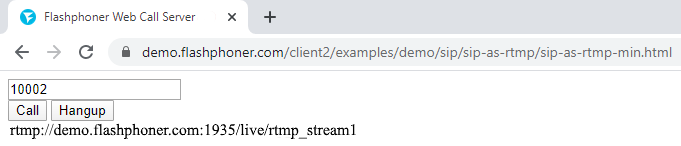
3. The “call()” function forms and sends a REST call to organize an outgoing SIP call, capture the video stream and republish it to an RTMP server. Also, a link to play the stream is generated and displayed on the web page. To work correctly, enter your details here to connect to your SIP server
function call() {
    fetchUrl = url + "/startup";
    const options = {
        method: "POST",
        headers: {
            "Content-Type": "application/json"
        },
        body: JSON.stringify({
            "callId": "123456",
            "callee": document.getElementById("callee").value,
			"rtmpUrl": rtmpUrl,
			"rtmpStream":rtmpStream,
            "hasAudio": "true",
            "hasVideo": "true",
            "sipLogin": "10001",
            "sipAuthenticationName": "10001",
            "sipPassword": "Abcd_1111",
            "sipDomain": "p21.flashphoner.com",
            "sipOutboundProxy": "p21.flashphoner.com",
            "sipPort": "5060",
            "appKey": "defaultApp",
            "sipRegisterRequired": "true"
        }),
    }
    fetch(fetchUrl, options)
    var sipToRtmpUrl = rtmpUrl + "/rtmp_" + rtmpStream;
    document.getElementById("rtmpurl").textContent = sipToRtmpUrl;
}
4. Function “hangup()” generates a REST call to end the ongoing outbound SIP call
function hangup() {
    fetchUrl = url + "/terminate";
    const options = {
        method: "POST",
        headers: {
            "Content-Type": "application/json"
        },
        body: JSON.stringify({
            "callId": "123456",
        }),
    }
    fetch(fetchUrl, options)
}
Full JavaScript code looks like this:
var url = "http://demo.flashphoner.com:8081/rest-api/call";
var rtmpUrl = "rtmp://demo.flashphoner.com:1935/live";
var rtmpStream = "stream1";

function init_page() {
    Flashphoner.init({});
    callBtn.onclick = call;
    hangupBtn.onclick = hangup;
}

function call() {
    fetchUrl = url + "/startup";
    const options = {
        method: "POST",
        headers: {
            "Content-Type": "application/json"
        },
        body: JSON.stringify({
            "callId": "123456",
            "callee": document.getElementById("callee").value,
			"rtmpUrl": rtmpUrl,
			"rtmpStream":rtmpStream,
            "hasAudio": "true",
            "hasVideo": "true",
            "sipLogin": "10001",
            "sipAuthenticationName": "10001",
            "sipPassword": "Abcd_1111",
            "sipDomain": "p21.flashphoner.com",
            "sipOutboundProxy": "p21.flashphoner.com",
            "sipPort": "5060",
            "appKey": "defaultApp",
            "sipRegisterRequired": "true"
        }),
    }
    fetch(fetchUrl, options)
    var sipToRtmpUrl = rtmpUrl + "/rtmp_" + rtmpStream;
    document.getElementById("rtmpurl").textContent = sipToRtmpUrl;
}

function hangup() {
    fetchUrl = url + "/terminate";
    const options = {
        method: "POST",
        headers: {
            "Content-Type": "application/json"
        },
        body: JSON.stringify({
            "callId": "123456",
        }),
    }
    fetch(fetchUrl, options)
}
Page view while making a call
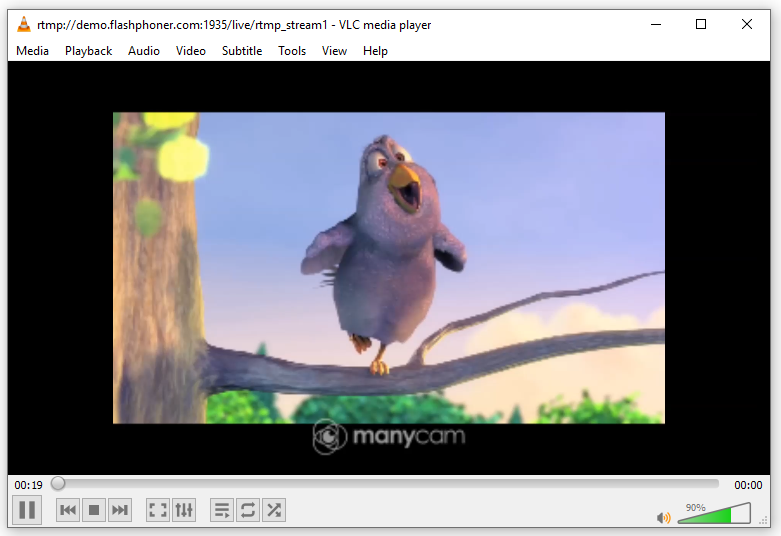
The RTMP stream is played in a third-party player (VLC Media Player)
Download Web Call Server 5
System requirements: Linux x86_64, 1 core CPU, 2 Gb RAM, Java
Download Now
Installation:
- wget https://flashphoner.com/download-wcs5.2-server.tar.gz
- Unpack and install using 'install.sh'
- Launch server using command 'service webcallserver start'
- Open the web interface https://host:8444 and activate your license
If you are using Amazon EC2, you don't need to download anything.
Launch WCS5 on Amazon EC2
Web Call Server Monthly Subscription
$145 per month
Purchase

Testing example SIP as RTMP
Here we show an example of testing the republishing and playback of a SIP stream as RTMP
Use these instructions for quick installation and configuration of the server. In addition to that, you can connect to our demo server demo.flashphoner.com to perform the tests. Also for testing, you will need credentials to connect to a SIP server and a software SIP phone.
Test plan
- Connect to SIP server
- Make outgoing SIP video call
- Play the video stream of the outgoing SIP video call in the player on the browser page and in a third-party player (VLC Media Player)
Testing example SIP as RTMP
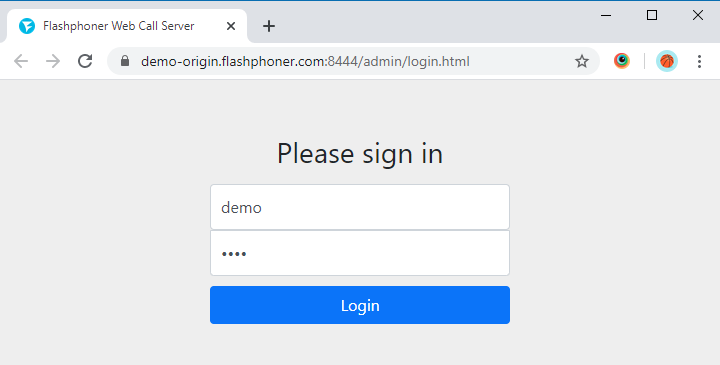
1. Log in to the web interface of the server demo.flashphoner.com
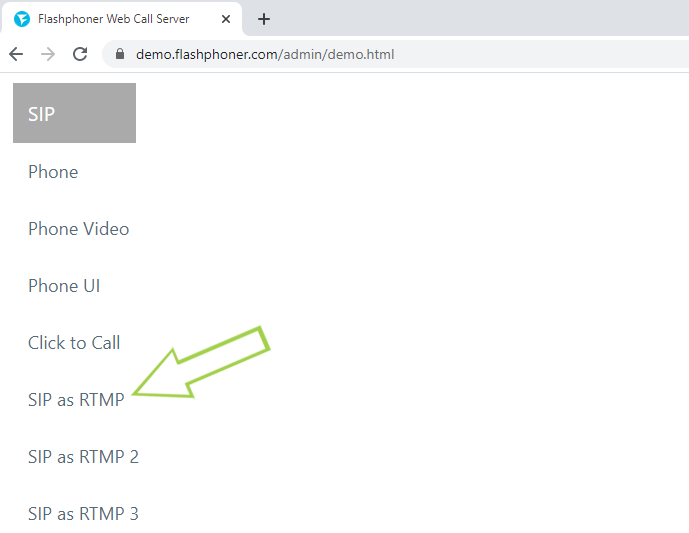
2. Select “SIP as RTMP” from the menu on the left side of the page
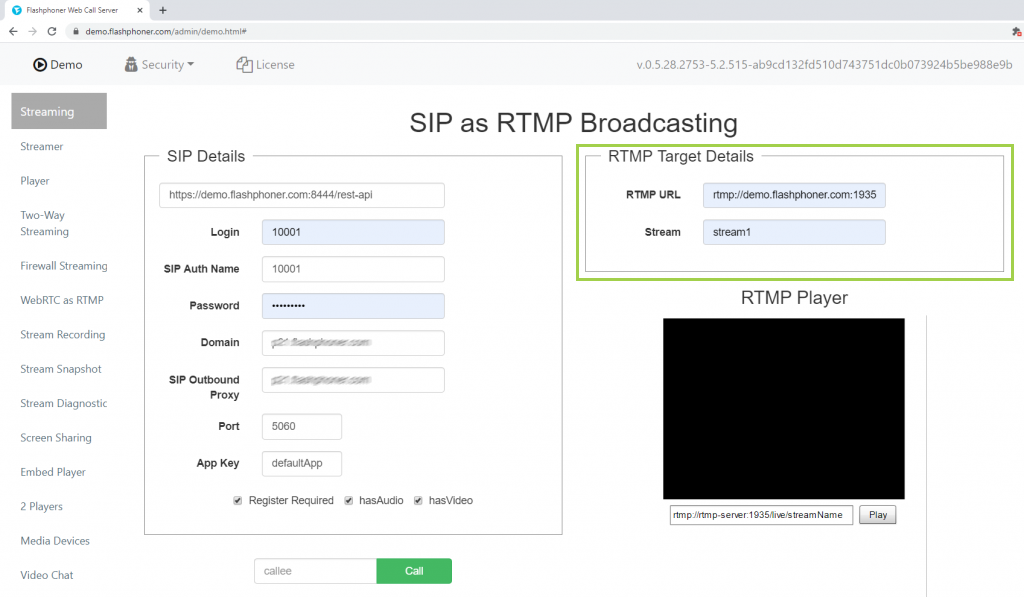
3. On the page that opens, fill in the fields in the “SIP Details” section. Specify the necessary credentials to connect to your SIP server. Activate the checkboxes “hasAudio”, “hasVideo”. If your SIP server requires authorization, activate the “Register Required” checkbox.
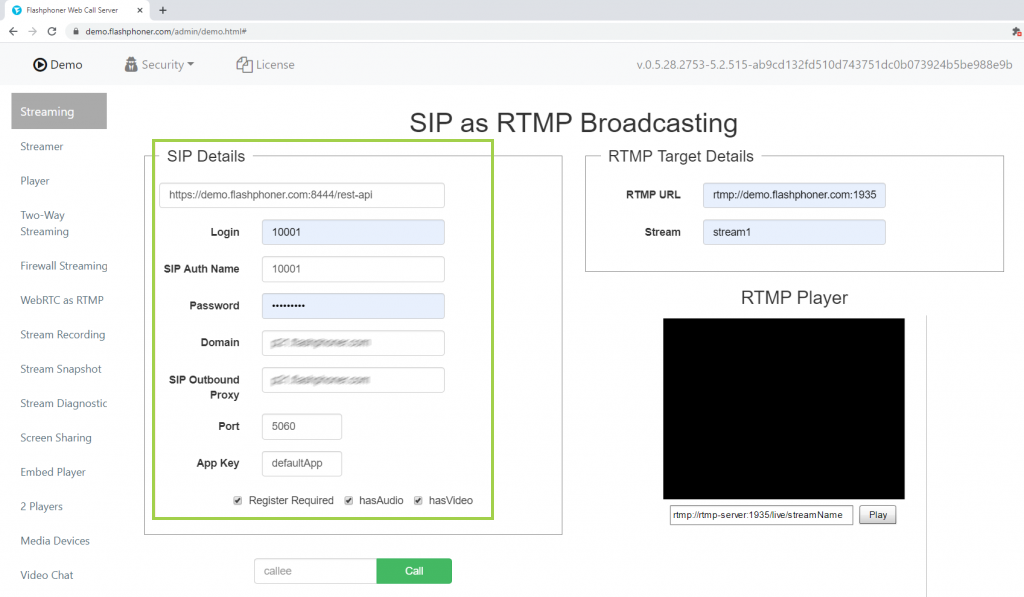
4. Fill in the fields in the “RTMP Target Details” section. Indicate the URL of the server to which the stream will be republish and the name of the RTMP stream. In our example, we republished the stream to the same WCS server: the server URL in this case: rtmp://demo.flashphoner.com:1935/live, the name of the stream is “stream1”
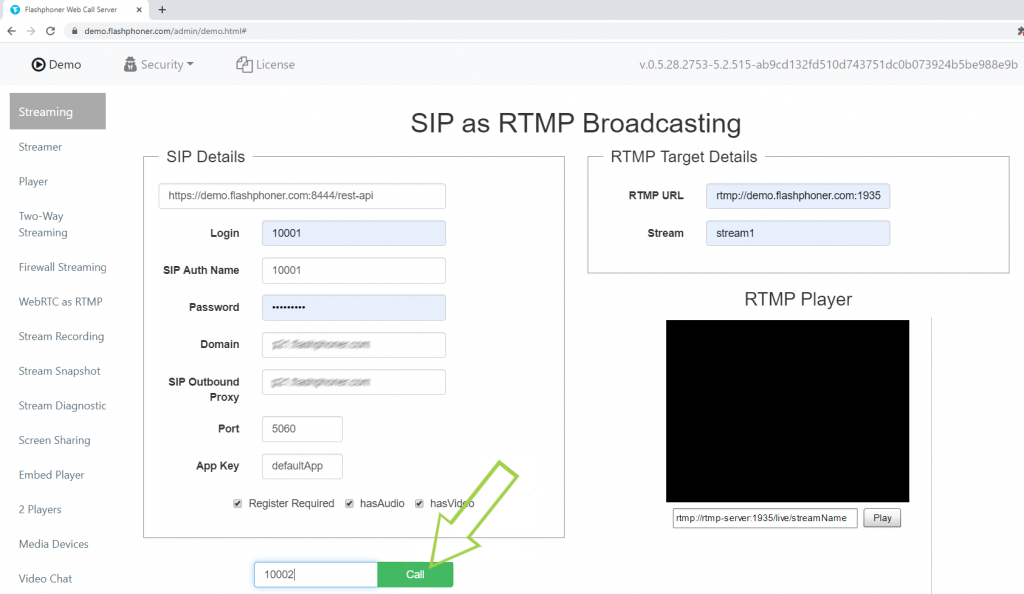
5. In the field for entering the callee number, specify the number of the second subscriber to whom the outgoing SIP call will be made and click the “Call” button
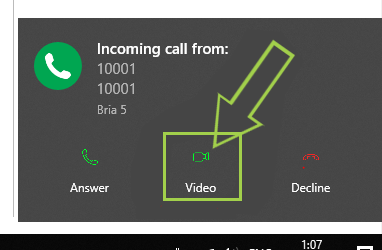
6. Answer the call on the SIP softphone
7. When the call between the browser and the SIP softphone is establishing, click the “Play” button
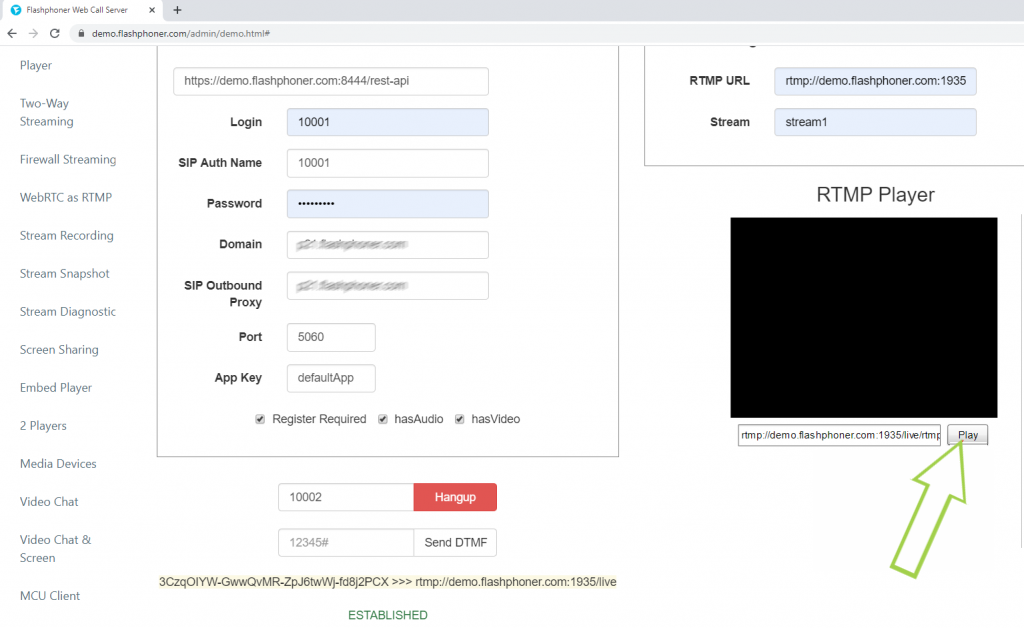
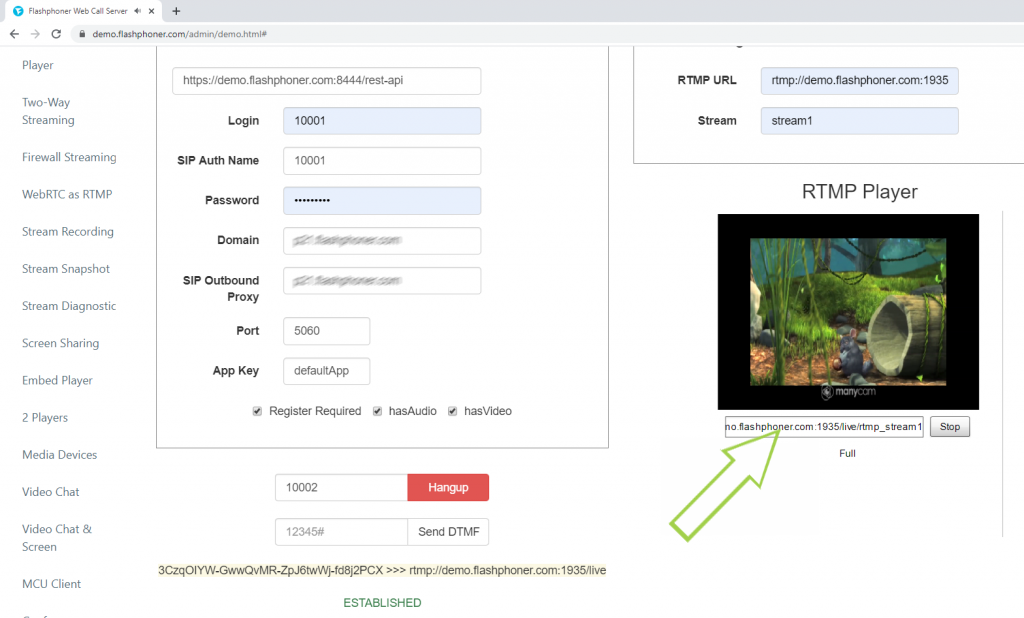
8. Done, the SIP video stream plays as RTMP on the browser page. Copy the link from the field next to the “Play” button
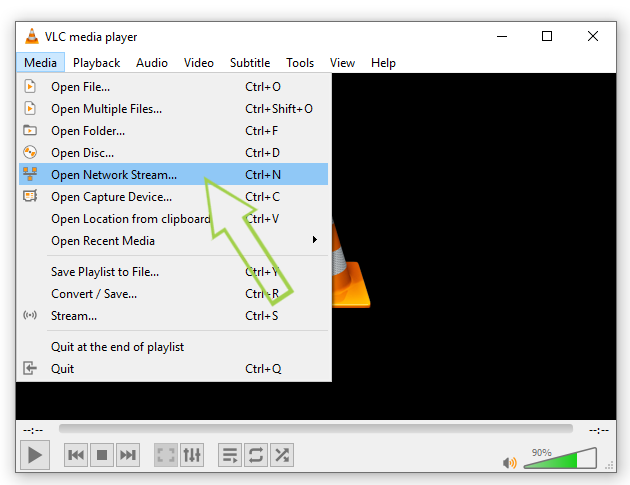
9. Launch VLC Media Player. In the main menu, select “Media” > “Open Network Stream”
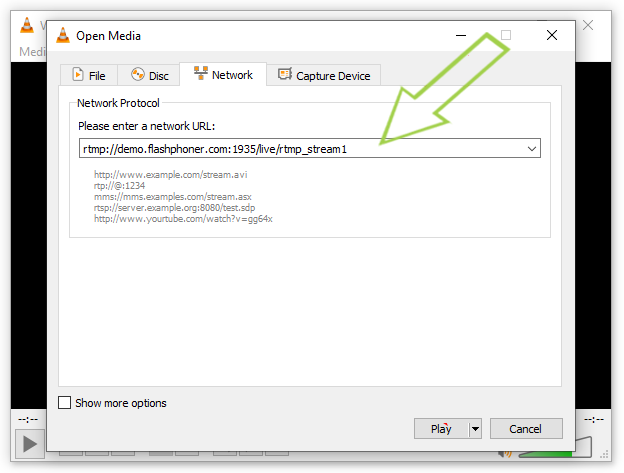
10. Paste the copied link into the input field and click the “Play” button
11. Done! The republished SIP video stream is played in the third-party player “VLC Media Player”
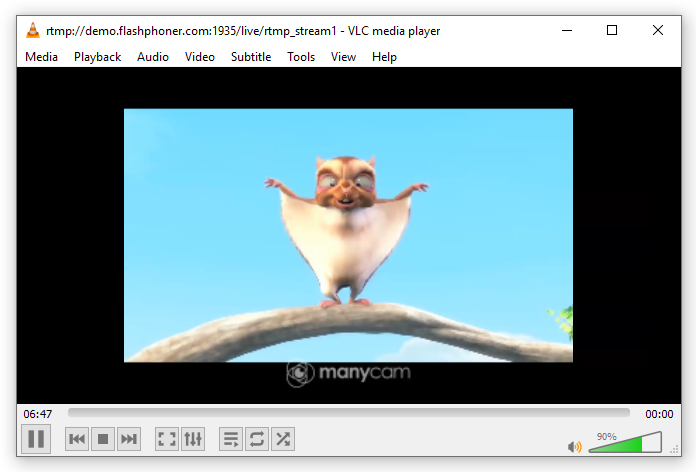
For testing we used a video played using a virtual camera.
As a result of the testing, we successfully established communication with the SIP server, made a video call with it, captured the video stream and played it as an RTMP video stream on the web page and in a third-party player.
You can find additional information on embedding repubishing and subsequent playback of a SIP stream as RTMP in your web project on the Embedding page.
Download Web Call Server 5
System requirements: Linux x86_64, 1 core CPU, 2 Gb RAM, Java
Download Now
Installation:
- wget https://flashphoner.com/download-wcs5.2-server.tar.gz
- Unpack and install using 'install.sh'
- Launch server using command 'service webcallserver start'
- Open the web interface https://host:8444 and activate your license
If you are using Amazon EC2, you don't need to download anything.
Launch WCS5 on Amazon EC2
Web Call Server Monthly Subscription
$145 per month
Purchase

Capturing video and republishing of SIP video call
Functions SIP as Stream and SIP as RTMP
A SIP call made through a WCS server can be captured to the stream on the server when making the call. Then this stream can be played in a browser or republished to an RTMP server for further playback.
Capturing and republishing SIP phone calls is controlled by the REST API calls
Specifications
Protocols
and technologies |
SIP codecs |
RTMP codecs |
SIP devices |
|
|
- H.264
- VP8
- G.711
- Speex
- Opus
|
|
- Polycom DMA
- Cisco Media Server
- Asterisk
- OpenSIPs
- Bria, etc
|
Protocols and technologies
SIP codecs
- H.264
- VP8
- G.711
- Speex
- Opus
SIP devices
- Polycom DMA
- Cisco Media Server
- Asterisk
- OpenSIPs
- Bria, etc
Scheme for capturing and republishing a stream from a SIP call
- A video call is established between the WCS and the SIP device (SIP MCU, conference server or SIP softphone)
- The WCS receives audio and video data from this SIP device
- The WCS server redirects the received audio and video traffic to an RTMP server or other device that can receive and process an RTMP stream, or plays in the player

Step-by-step diagram of capturing and republishing a stream from a SIP call
- REST client starts a call using REST call /call/startup;
- WCS server connects to SIP server;
- The SIP server transfers audio-video stream to the WCS;
- The browser requests playback of the stream from the WCS server;
- The WCS server broadcasts the audio-video stream that was received from the SIP server.

Step-by-step diagram of capturing and republishing a stream from a SIP call to RTMP
- REST client starts a call using REST call /call/startup;
- WCS server connects to SIP server;
- The SIP server transfers audio-video stream to the WCS server;
- The WCS server republishes the received audio-video stream to the RTMP server.

Download Web Call Server 5
System requirements: Linux x86_64, 1 core CPU, 2 Gb RAM, Java
Download Now
Installation:
- wget https://flashphoner.com/download-wcs5.2-server.tar.gz
- Unpack and install using 'install.sh'
- Launch server using command 'service webcallserver start'
- Open the web interface https://host:8444 and activate your license
If you are using Amazon EC2, you don't need to download anything.
Launch WCS5 on Amazon EC2
Web Call Server Monthly Subscription
$145 per month
Purchase
Popular cloud hosting DigitalOcean has recently launched its new marketplace selling preconfigured images that can help to quickly deploy an application server. It’s much like AWS, but DO is for those already using this provider’s services. Let’s see how to deploy a simple server for WebRTC streaming with a DO account for a $10/month fee based on Flashphoner WebCallServer and how such a server can be of use.
Latest news
-
Sales migration from Skype to Teams on 16 Apr 2025
On April 16, 2025, we began the transition from Skype to Teams.
On the same day, we sent out a message via our Skype account (flashphoner.com / Flashphoner Sales) informing users about the move.
Unfortunately, this message appears to have triggered a block on our Microsoft account (Skype + Teams), most likely due to being flagged as spam. As of now, appeals have not been successful, and the account remains blocked.
Our current contact details:
Microsoft Teams: sales@flashphoner.com — for sales, pre-sales, and licensing inquiries
See also updated contacts page: https://flashphoner.com/contact
21, April 2025
-
Card payments were successfully restored on September 13, 2024
We have restored card payments since September 13, 2024.
Please write to sales@flashphoner.com or Skype flashphoner.com with any questions regarding payments and subscription renewals.
13, September 2024
-
Card payments temporary unavailable since August 16, 2024
Due to technical reasons, we are temporarily unable to accept card payments.
For direct payments via Wire-Transfer or USDT, please contact us at:
sales@flashphoner.com
Sorry for the inconvenience.
We will inform you as soon as payments are operational. Stay tuned for updates on our website.
16, August 2024
More News